
Logging on for the First Time to NIS
For the first time logging on to NIS, user will be prompted to set up his/her own password. When the username and password (provided by the Computer Section) are inputted, the system will automatically prompt the user to enter the Current Password, followed by the New Password. User will then be asked to re-confirm the password and click on Change Password (Figure 1).
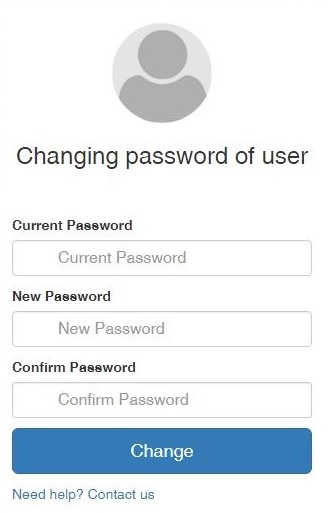
Figure 1: Create New Password
Changing the Password
Once logged on, the user can change the password by clicking on the username situated on the top right hand corner of the page and then Change Password (Figure 2).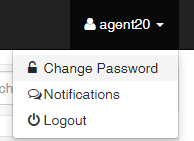
Figure 2: Change Password
User will then be prompted to type in the existing password, followed by the new password. Once the password is reconfirmed (Figure 3).
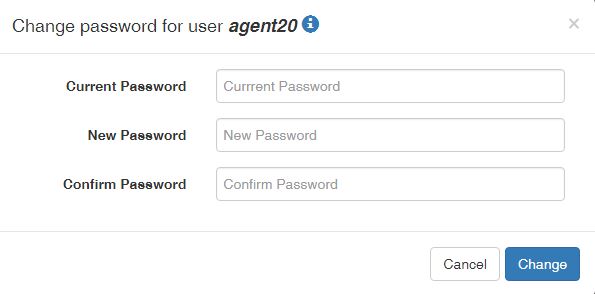
Figure 3: Create Password
Figure 3: Create Password

