
Clearing the Browser's Cache
Internet Explorer
Step 1: Click on the Tools button (circled in red in Figure 1) at the top right corner, then select Safety followed by Delete Browsing History.

Figure 1: Tools
Figure 1: Tools
Note: Alternatively you can press Ctrl, Shift and Delete keys on your keyboard altogether to access it directly.
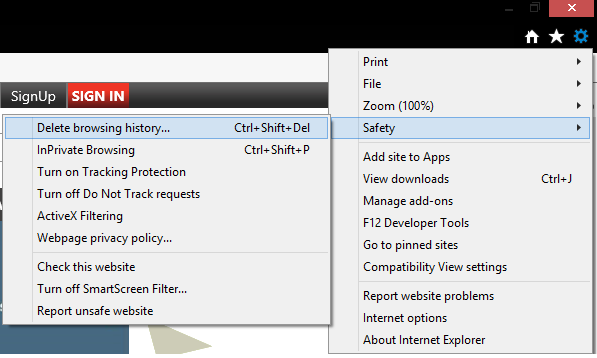
Figure 2: Delete Browsing History
Step 2: Untick all the options except Temporary Internet Files and Website Files and Cookies and Website Data.. Once these 2 are selected, click on Delete to clear the browser's cache.
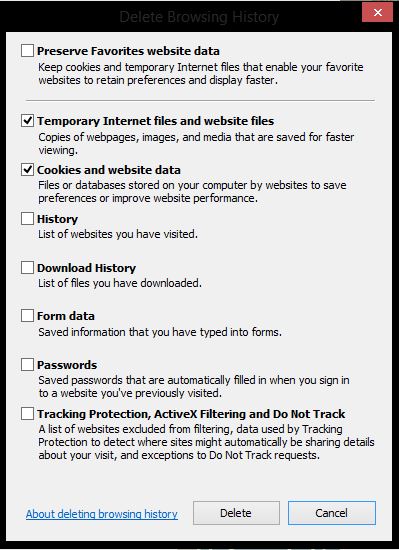
Figure 3: Clear Cache
Step 3: Once the process has been completed, end the current session by closing the browser. You can now reopen the browser and continue with your browsing.
Figure 3: Clear Cache
Step 3: Once the process has been completed, end the current session by closing the browser. You can now reopen the browser and continue with your browsing.
Microsoft Edge
Step 1: Click on the More button (circled in red Figure 4) and then on Settings.
Figure 4: Tools
Note: Alternatively, you can press Ctrl, Shift and Delete to access it directly.
Step 2: From the following menu select Clear Browsing Data.
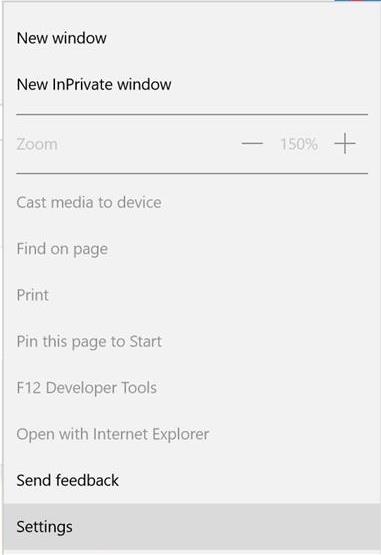
Figure 5: More Button
Step 3: From the following screen select the below options and click on Clear.
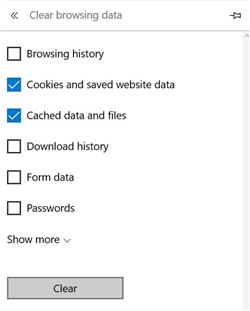
Figure 6: Clearing the Cache
Step 4: Once the process has been completed, end the current session by closing the browser. You can now reopen the browser and continue with your browsing.
Google Chrome
Step 1: Click on the Tool-tip button (circled in red Figure 6) at the top right corner, select More Tools and click on Clear Browsing Data.
Figure 7: Tool Tip
Note: Alternatively you can press Ctrl, Shift and Delete keys on your keyboard altogether to access it directly.
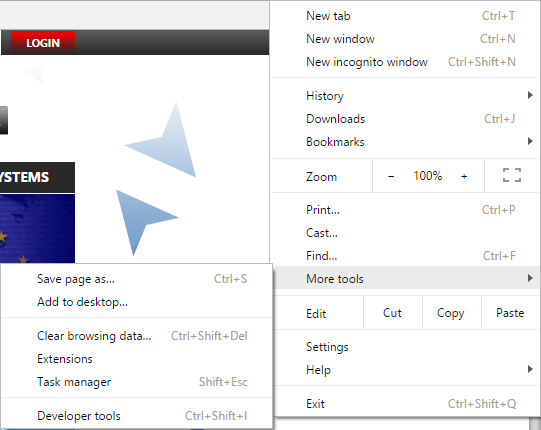
Figure 8: Delete Browsing Data
Step 2: Untick all options except Cached Images and files and Cookies and Other Site and Plugin Data. Choose The Beginning of Time from the drop down menu.
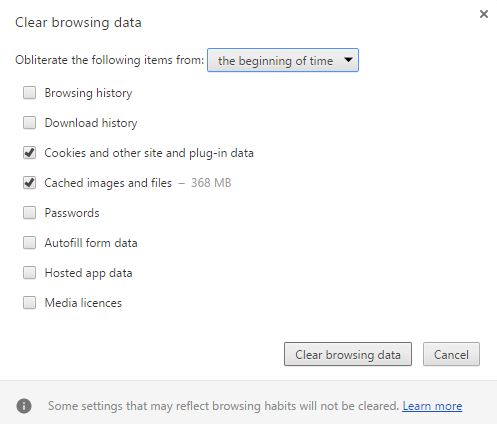
Figure 9: Clear Browsing Data
Step 3: Once the process has been completed, end the current session by closing the browser. You can now reopen the browser and continue with your browsing.
Mozilla Firefox
Step 1: Click on the button at the top right corner and then click on Options.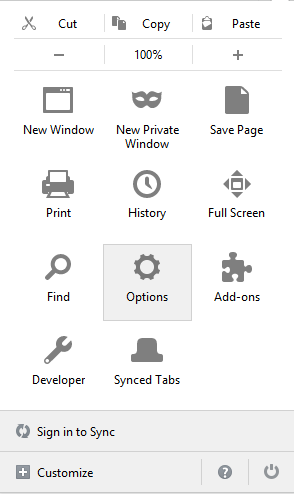
Figure 10: Options
Step 2: Click on Advanced from the sidebar on the left Menu and then click on the Network tab.
Step 3: Click Clear Now under Cached Web Content.

Figure 11: Cached Web Content
Alternatively you can press Ctrl, Shift and Delete keys on your keyboard altogether, select the following options and click on Clear Now. Once the process has been completed, end the current session by closing the browser. You can now reopen the browser and continue with your browsing.
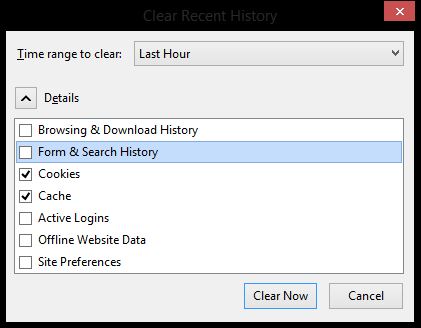
Figure 12: Clear Browsing Data
Safari
Step 1: Click on Safari from the top left corner and click on Preferences.
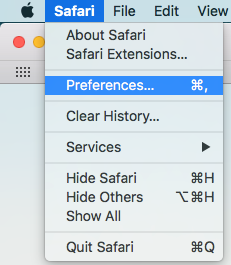
Figure 13: Preferences
Step 2: Click on the Privacy tab and then select Manage Website Data...
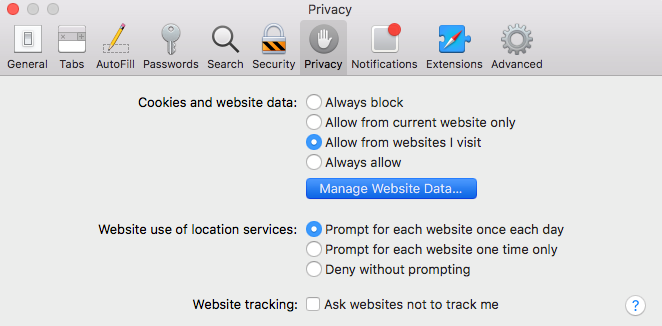
Figure 14: Privacy
Step 3: From the following screen click on Remove All and then on Done. Once the process has been completed, end the current session by closing the browser and then reload the browser.

